Discover the exciting world of mobile app development with Turtle App at CodeTurtleLab! In this online course, teens ages 10–16 use MIT App Inventor to design user-friendly interfaces, learn programming logic, and build practical mobile applications. Through hands-on projects, students turn their creative ideas into interactive apps while developing problem-solving skills and confidence in technology.
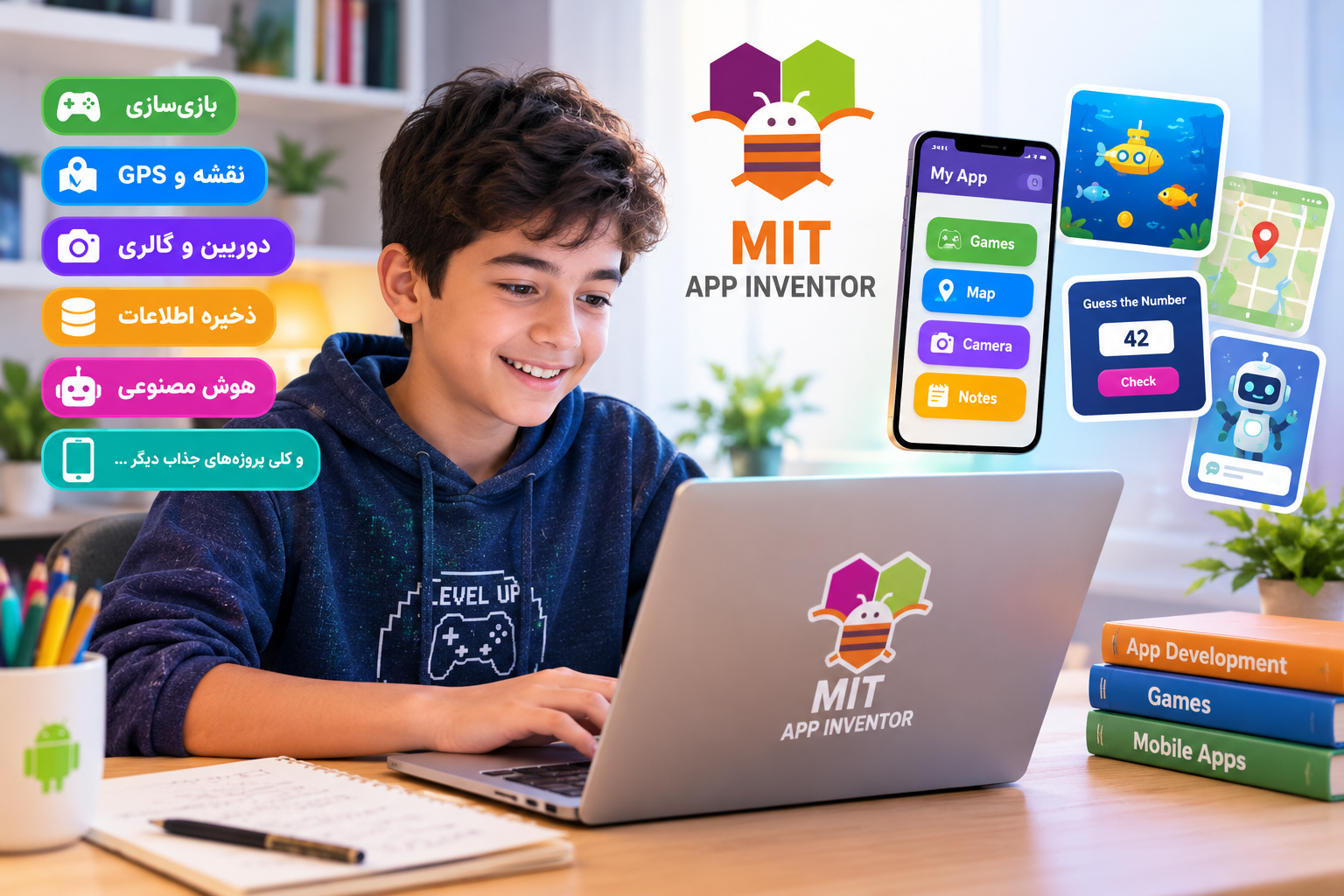
The App Inventor course for teens at CodeTurtleLab introduces students ages 10–16 to mobile app design and programming through hands-on, project-based learning. Using MIT App Inventor, students learn to design user interfaces, understand programming logic, and build practical mobile applications.
Students discover how to assign actions to buttons and events, collect and process user input, and add features such as saving notes, managing to-do lists, selecting images, and using mobile device sensors.
Throughout the course, students build several small, practical applications and gradually develop the skills needed to create more advanced projects. They also learn how to test their apps, identify and fix errors, improve functionality, save their work, and prepare app builds.
The goal is not simply to learn how to use a programming tool. Students learn to analyze an idea, plan a solution, and apply programming logic to turn that idea into a working application.
| Feature | Details |
|---|---|
| Course Name | Turtle App – Mobile App Development |
| Subject | Mobile App Design and Programming |
| Main Tool | MIT App Inventor |
| Recommended Age | 10–16 years |
| Course Duration | 30 sessions, one hour each |
| Total Instructional Time | 30 hours |
| Delivery Format | Online |
| Teaching Approach | Interactive, project-based learning with practical exercises |
| Recommended Prerequisites | Basic familiarity with Scratch and introductory programming concepts |
| Projects | A collection of practical and interactive mobile applications |
| Final Project | Design and complete an application using the skills learned throughout the course |
Students learn about essential user interface components, including buttons, labels, text input fields, images, and screen layouts. They discover how to organize these elements to create interfaces that are clear, functional, and easy to use.
Students learn how to use events, conditions, variables, and logical instructions to define how an application behaves. For example, they can make a button display information or configure an application to produce different results depending on the user’s selection.
Students learn how to collect information from users and store it for later use. Using TinyDB, they practice saving data such as notes and to-do lists so that the information can be retrieved when the application is opened again.
Students learn how to display images, use sound, select pictures, and work with mobile features such as the accelerometer. They also explore examples of location-based functionality using a device’s location sensor.
Students test their applications, identify and correct errors, save their projects for future editing, and learn about testing methods and preparing app builds for compatible devices.
| Learning Module | Topics Covered |
|---|---|
| Introduction to App Inventor | Creating projects, exploring the Designer and Blocks editors, and testing applications |
| Screen Design | Layouts, buttons, labels, text input fields, and images |
| Events and Instructions | Defining button actions, collecting user input, and displaying output |
| Programming Logic | Variables, conditions, calculations, and program flow |
| Working with Data | Collecting, processing, and displaying user-provided information |
| Data Storage | Saving and retrieving information with TinyDB and managing stored data |
| Images and Media | Selecting images, displaying pictures, adding captions, and using sound |
| Mobile Sensors | Detecting device movement and exploring location sensors |
| Maps and Location | Understanding location displays and map-related functionality |
| More Advanced Projects | Combining multiple features in one application and exploring smart app concepts |
| Testing and App Builds | Testing functionality, debugging, saving project files, and preparing app builds |
Throughout the course, students apply programming concepts by building a variety of applications. Each project provides an opportunity to practice specific skills and can be expanded as students progress.
Skills: Sensors, random numbers, images, and sound
Students build a dice application that displays a random number when the device is shaken. They explore how to use the accelerometer, display images, and add sound effects.
Skills: Text input, TinyDB, and data retrieval
Students design an application for creating and managing notes. Users can enter text, save notes, and view them later. Students also practice clearing the displayed text and deleting the corresponding stored information.
Skills: List management and data storage
Students create an application for organizing daily tasks. They practice adding new items, displaying a task list, and storing information locally so that saved tasks can be retrieved later.
Skills: User selection, dates, and record storage
Students design an application that allows users to select a daily mood and enter a short explanation. The application stores information by date so that previous entries can be retrieved when needed.
Skills: Image selection and media display
Students explore how to select a picture from a device’s gallery and display it in an application. They also learn how to add a caption or description to the selected image.
Skills: Location sensors and data handling
Students learn about geographical coordinates and build an application that retrieves and displays the device’s current location. Saving coordinates for later use can also be practiced when included in the project.
Skills: Maps and location-based information
Students explore how maps can be used in mobile applications and practice displaying locations and working with location-related features. Some functionality depends on internet access and the availability of a compatible mapping service.
Skills: Messaging interface design and text input
Students learn how to design a conversation screen, display messages, and collect text input. Real-time communication between multiple users requires an appropriate communication service and supporting infrastructure, which can be explored as an extended feature.
Skills: Smart interface design and service integration concepts
Students explore the idea of an intelligent assistant and learn how to design an interface that accepts questions and displays responses. Generating real AI responses requires connecting to a compatible AI service and configuring the necessary integration.
An important part of this course is understanding the difference between saving a project file, storing information within an application, and preparing an app build for installation. These concepts help students create applications that can retain information beyond a single session.
| Feature | Explanation and Use |
|---|---|
| Save Project | Save the project in App Inventor so it can be edited and developed later |
| Export Project (.aia) | Download the project file for backup, transfer, or further editing in App Inventor |
| Build / Export APK | Generate an Android installation package when supported by the environment and project configuration |
| TinyDB – Store Value | Store information, such as notes, settings, or task lists, locally on the device |
| TinyDB – Get Value | Retrieve information that was previously stored |
| TinyDB – Clear Tag | Delete stored data associated with a specific tag |
| Data Management | Understand the difference between clearing text displayed on the screen and deleting the underlying stored information |
| Online Data Storage | Learn that sharing or synchronizing data across multiple users or devices requires an appropriate online service |
An important concept is that clearing text from an input field does not necessarily delete the information saved in storage. Students learn to manage both the user interface and the underlying storage logic when deleting data.
Students also learn that a project file and an installation package are different. A project file is used for editing and development, while an installation package is intended to run the application on a compatible device.
| Skill | Expected Learning Outcome |
|---|---|
| User Interface Design | Design simple, functional mobile app screens |
| Algorithmic Thinking | Break problems into logical, executable steps |
| Event-Driven Programming | Define how an application responds to user interactions |
| Data Management | Collect, save, retrieve, and delete information |
| Mobile Features | Gain practical experience with images, sound, and selected sensors |
| Problem-Solving and Debugging | Test applications and correct errors |
| Project Development | Combine multiple features to build more complete applications |
| Understanding the Development Cycle | Learn about saving projects, testing applications, and preparing app builds |
At CodeTurtleLab, learning focuses on active participation and practical project development. Each concept is introduced through examples and exercises so students can understand how programming ideas work in an application.
Basic familiarity with Scratch and introductory programming concepts is recommended. Students should also be comfortable using a computer, mouse, and keyboard.
| Requirement | Details |
|---|---|
| Computer | A desktop computer or laptop for designing and programming applications |
| Internet | A reliable connection for online classes and access to the learning environment |
| Programming Tool | MIT App Inventor |
| Testing Device | A compatible Android device for direct testing, when available; alternative testing methods may also be possible |
| User Account | Access to the account required to use the App Inventor environment |
The appropriate testing method will depend on the available devices and operating systems. Some features may also require device permissions, internet access, or third-party services.
Turtle App is suitable for teens who want to use visual programming to create mobile applications and are interested in games, practical tools, information-management apps, and smart application ideas.
The course can also be a useful step for students who want to build on their introductory programming knowledge and prepare for future learning in text-based programming and software development.
The goal is for students to understand the fundamentals of app design and programming and create several practical applications. The complexity of the final project will depend on each student’s progress and the features selected.
When information is saved using an appropriate method, such as TinyDB, it can be retrieved during a later session. Temporary variables alone are not sufficient for persistent data storage.
Students can learn testing methods and how to prepare app builds. Installation and execution depend on the operating system, project compatibility, and build configuration.
Students explore the interface and basic logic behind these types of projects. Features such as real-time messaging between users or responses generated by an AI service require additional integrations and supporting services.
Yes. The course can strengthen students’ understanding of variables, conditions, events, programming logic, and problem-solving. These concepts are also useful when learning text-based languages such as Python.
From designing app screens to managing data and exploring mobile features, students gain practical experience through a variety of creative projects. They learn to organize information, use programming blocks, test their apps, and improve their designs step by step. By the end of the course, each student will have developed valuable programming skills and completed projects that reflect their learning and creativity.